Payment terms
From Payment Terms, you can create and view payment terms in MIDLA, such as Immediate Payment, 15 Days, or 30 Days.
Navigation path:
Invoicing → Settings → Payment Terms
How to create a payment term
1. Open Payment Terms
From the Invoicing module, go to Settings and select Payment Terms.
The list of registered payment terms appears.
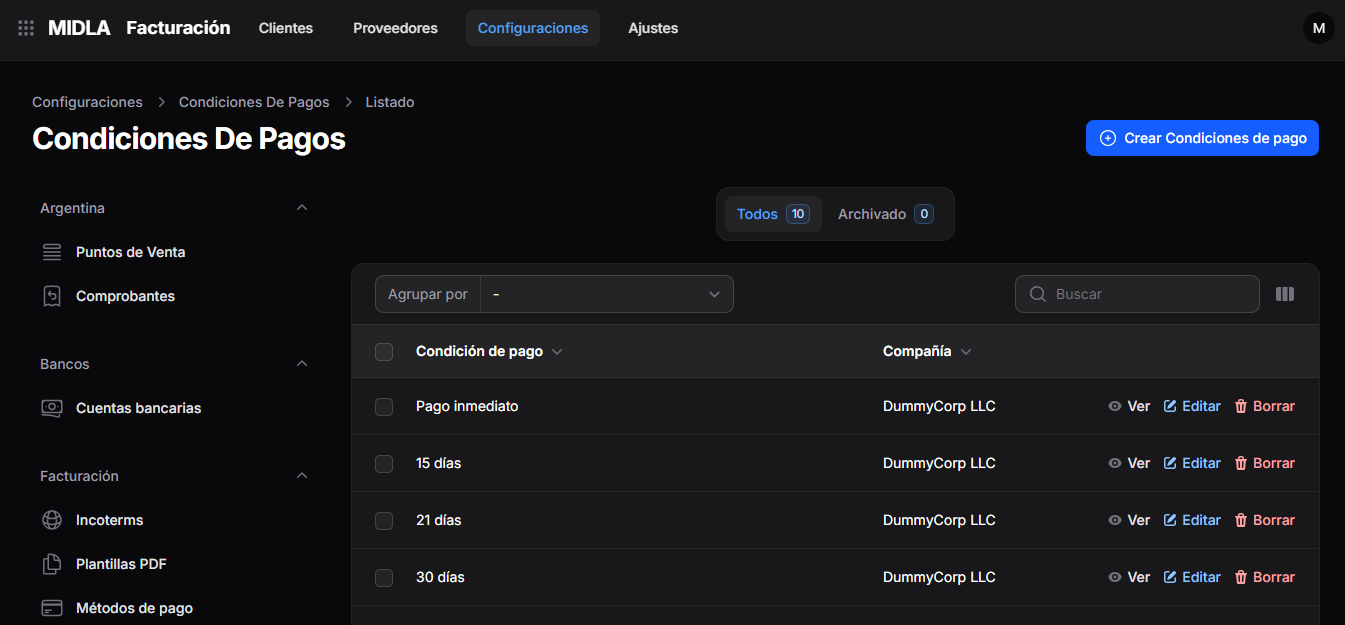
The list displays:
- Payment Terms
- Company
Use the Search field to find a record or the Group by option to organize the list.
You can also view the All and Archived tabs.
2. Select Create Payment Terms
In the upper-right corner, click Create Payment Terms.
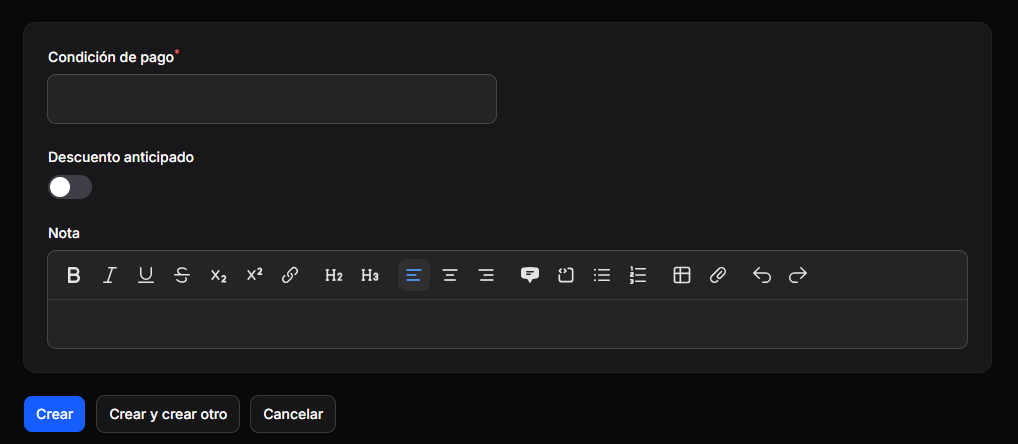
The creation form opens.
3. Complete the details
Complete the following fields:
- Payment Terms: enter a name that identifies the payment term, such as Immediate Payment or 30 Days. This field is required.
- Early Payment Discount: enable the toggle if an early payment discount applies.
- Note: add information or clarifications about the payment term, if applicable.
The Note field includes text formatting tools.
4. Save the payment term
Once you have completed the details, select one of the following options:
- Create: saves the payment term.
- Create and create another: saves the record and allows you to create a new one.
- Cancel: cancels the creation.
Manage payment terms
Each record in the list includes the following actions:
- View: allows you to view the payment term details.
- Edit: allows you to modify its details.
- Delete: allows you to delete the record.
Result
The payment term is registered in MIDLA.
You can view it under Invoicing → Settings → Payment Terms.